Introduction
Many people still think of Codex as just a tool for programmers. However, this perception is outdated. Today, Codex can assist with research, organization, copywriting, image generation, web design, and workflow automation, taking over many time-consuming tasks for creators.

Recently, discussions about Codex in design circles and among creators have overshadowed those about Claude Code. Users of Claude have experienced high monthly fees and increasingly strict risk control measures, leading to anxiety about account bans. In contrast, Codex offers a more user-friendly experience with a generous usage model.

Codex provides a reliable service without the stress of sudden account suspensions, resetting usage limits daily.
Getting Started with Codex
In this article, I will guide you through using this powerful tool.

Installation
Codex has several usage options, including a web interface, command line, and VS Code plugin. However, I strongly recommend using the official desktop app for the best experience. Installation is straightforward: visit the OpenAI website and download the app.
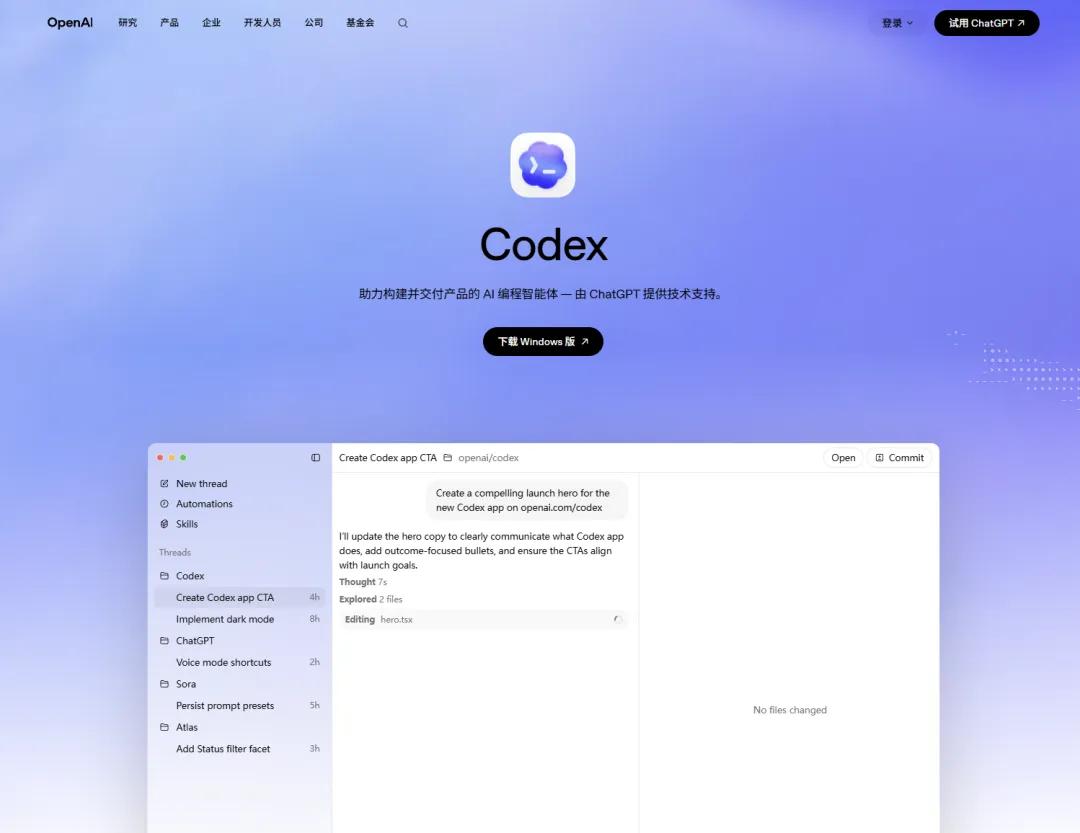
Open your browser and go to openai.com/codex. Click download and follow the prompts to complete the installation. On the first launch, a browser window will open for you to log in.
Use your regular GPT account to log in, and once authorized, return to the Codex app to start using it.
The interface is clean and user-friendly.
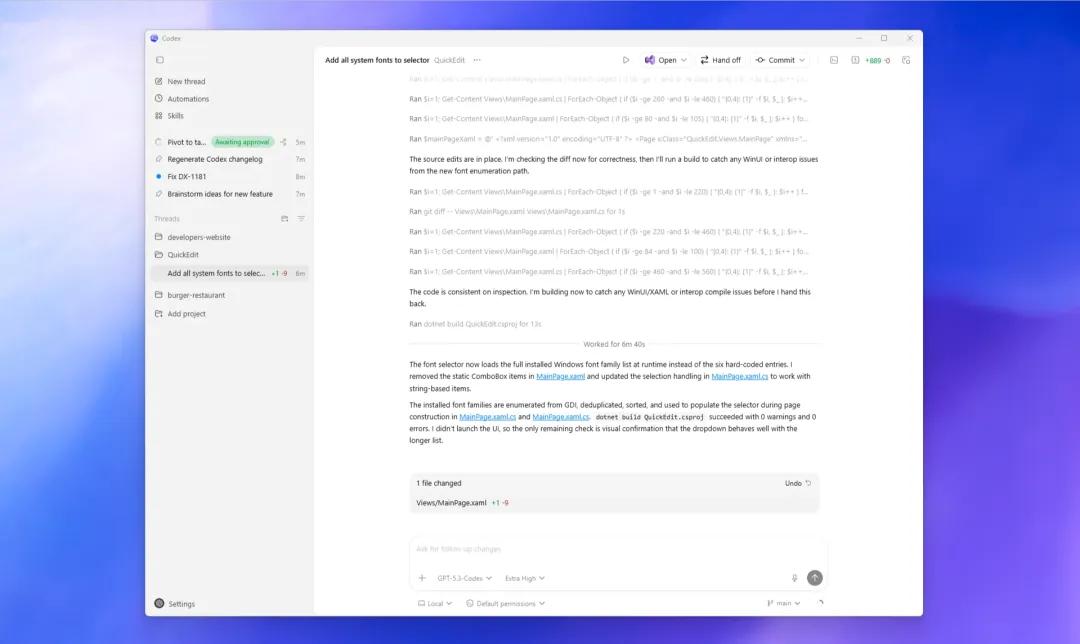
In the dialog box, you can choose the model (like version 5.5 or 5.4), set its intelligence level (low, medium, high, ultra-high), and even increase processing speed to 1.5 times.

The higher the intelligence level, the deeper it thinks and the more detailed its work, but this also slows down processing speed and increases usage consumption.

Understanding Usage Limits
What exactly is a “usage limit”? You can think of it as Codex’s stamina. The system allocates a set amount of usage every 5 hours. If you run out, you can either wait for it to reset or upgrade to the Pro version.
Here’s a fun fact: the usage limits for chatting on the GPT website and working in Codex are completely separate and do not interfere with each other.
To maximize your usage, try this trick: each morning around 7 or 8 AM, give Codex a small task to activate its usage cycle. By noon, you will have used one cycle; another cycle will be available from 1 PM to 6 PM, and you can run another session after dinner.
Codex’s management logic is clear, advancing work by projects.

Its dialog structure has two layers: the project layer and the thread layer. A large project can encompass numerous smaller threads. Each time you create a new project, the system will prompt you to specify a local folder on your computer. All conversations and generated files will be stored in this folder.
The best part is that you can enable “Project Memory” in the settings (Settings -> Personalization -> Memory). This allows all threads under the same project to share memory, so it remembers your brand tone and color preferences, preventing repetitive discussions.
Codex has also unified complex skills and plugins into a “Plugins” section.

Plugins are general interfaces created by third-party companies that you can use directly. Skills are more like your personal special moves, allowing you to package frequently repeated tasks into fixed skills.
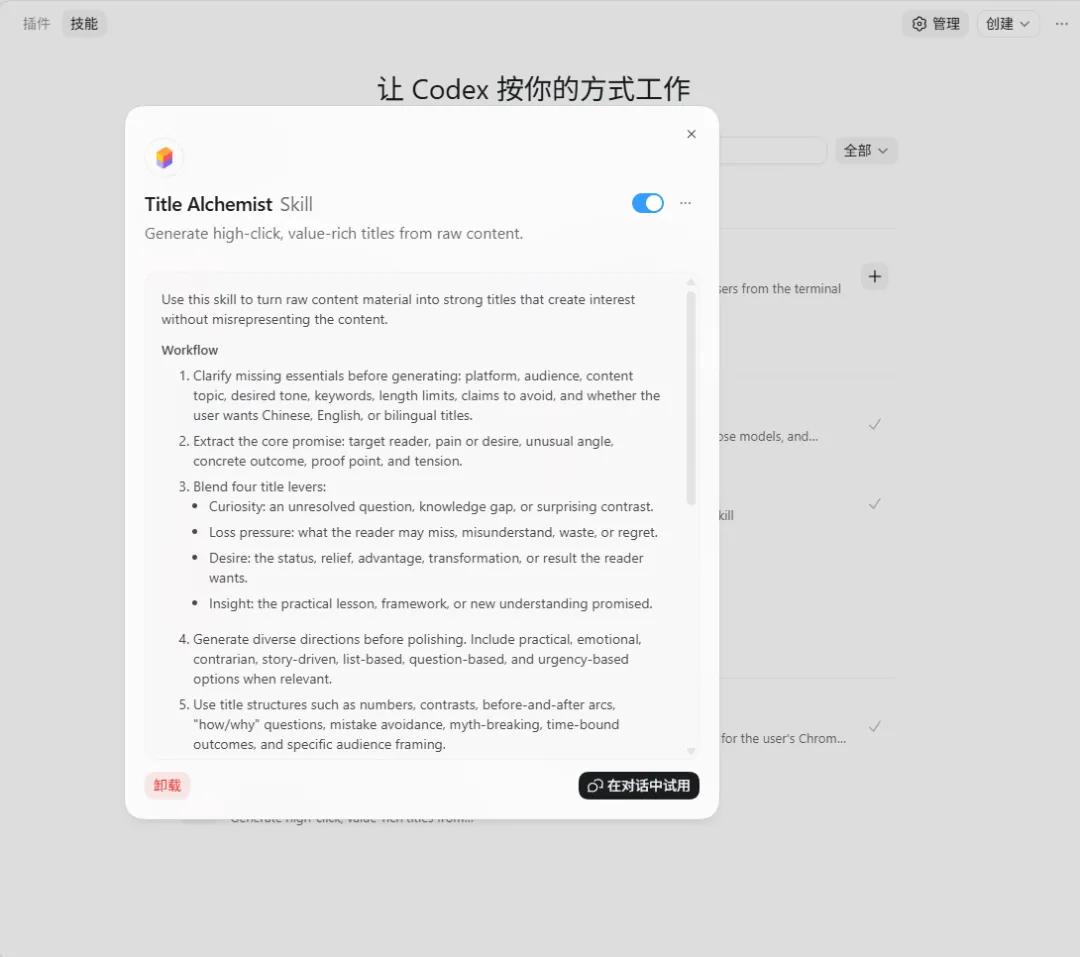
You can install them directly in “Plugins -> Skills -> Manage/Create” or call them by typing / in the dialog box.
While previous versions of Codex included a browser, they had a major limitation: they couldn’t access private websites requiring QR code logins, like your email or company WeChat. However, Codex has recently updated its Chrome plugin to bypass this barrier.

Once you authorize it, Codex can use your browser’s existing login state to perform various web tasks on your behalf.

Fun Tasks to Try
If you want to experience Codex today, I have a beginner task perfect for designers. Open Codex and say:
“Find creative ideas online and use the image model to generate 4 images.”

Don’t underestimate this request; it triggers a complete workflow. Just sit back and watch.

You will see it searching for inspiration on top design websites like Dribbble and Behance, analyzing current popular color schemes and compositions. Then, it will use its built-in generation model to produce interesting new images.


This process is far more efficient than aimlessly browsing the web, saving images, and struggling to write prompts for aesthetic practice.
You can refine your request further, for example:
“Analyze their color schemes, typography, and visual rhythms, then generate 4 main visual images suitable for a tech-focused website and organize the prompts into a document.”

Its capabilities are quite impressive:




After organizing, you can ask Codex: “Based on these 4 main visual images, generate 4 homepage designs for a tech-focused AI aggregation website.”

It can directly produce a complete clickable HTML homepage!
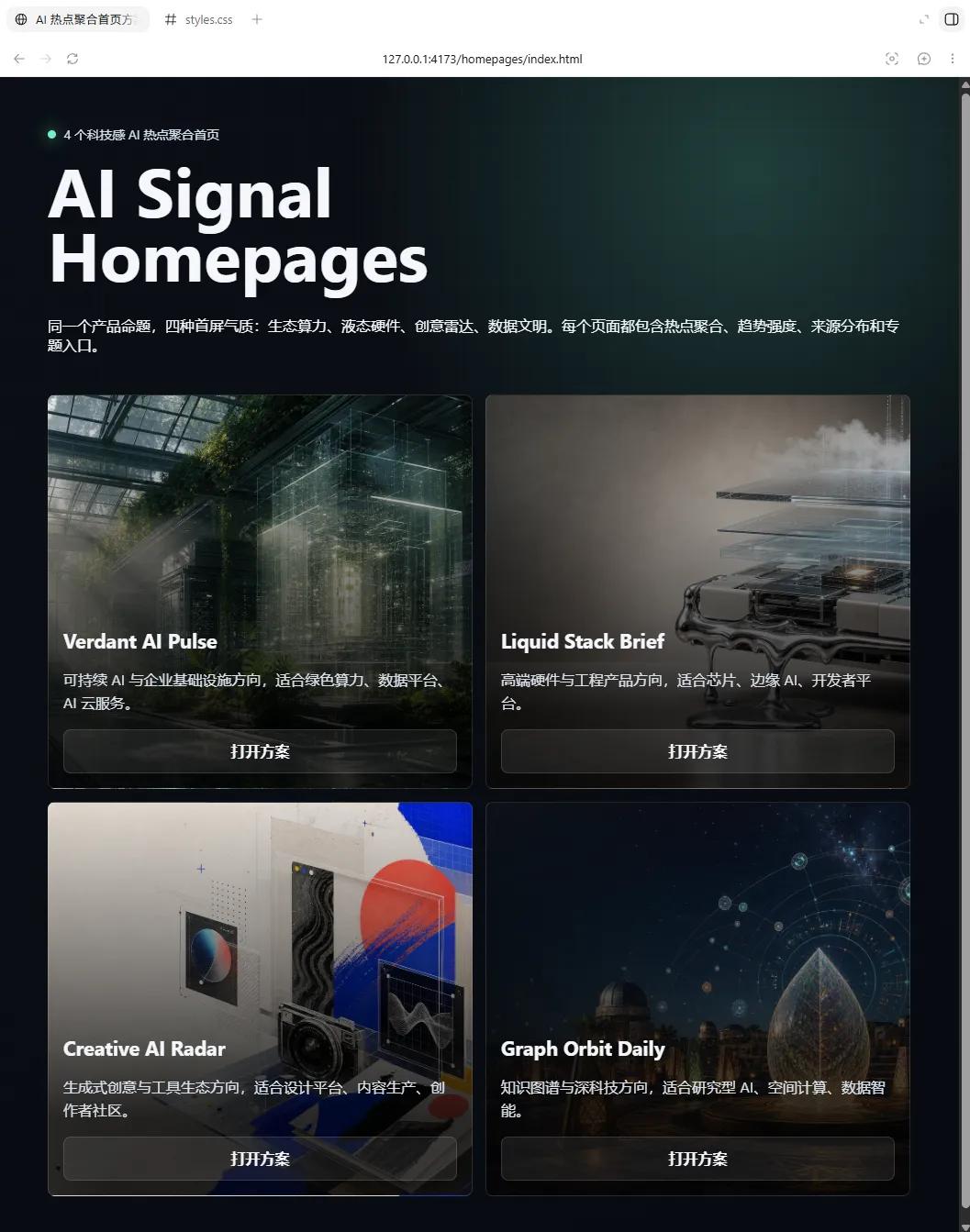


Once you complete this process, you will gain a profound understanding of how Codex operates.
Conclusion
Codex also has an official documentation with detailed usage instructions and feature descriptions, but it is entirely in English. I used Codex to create a preview infographic for you:



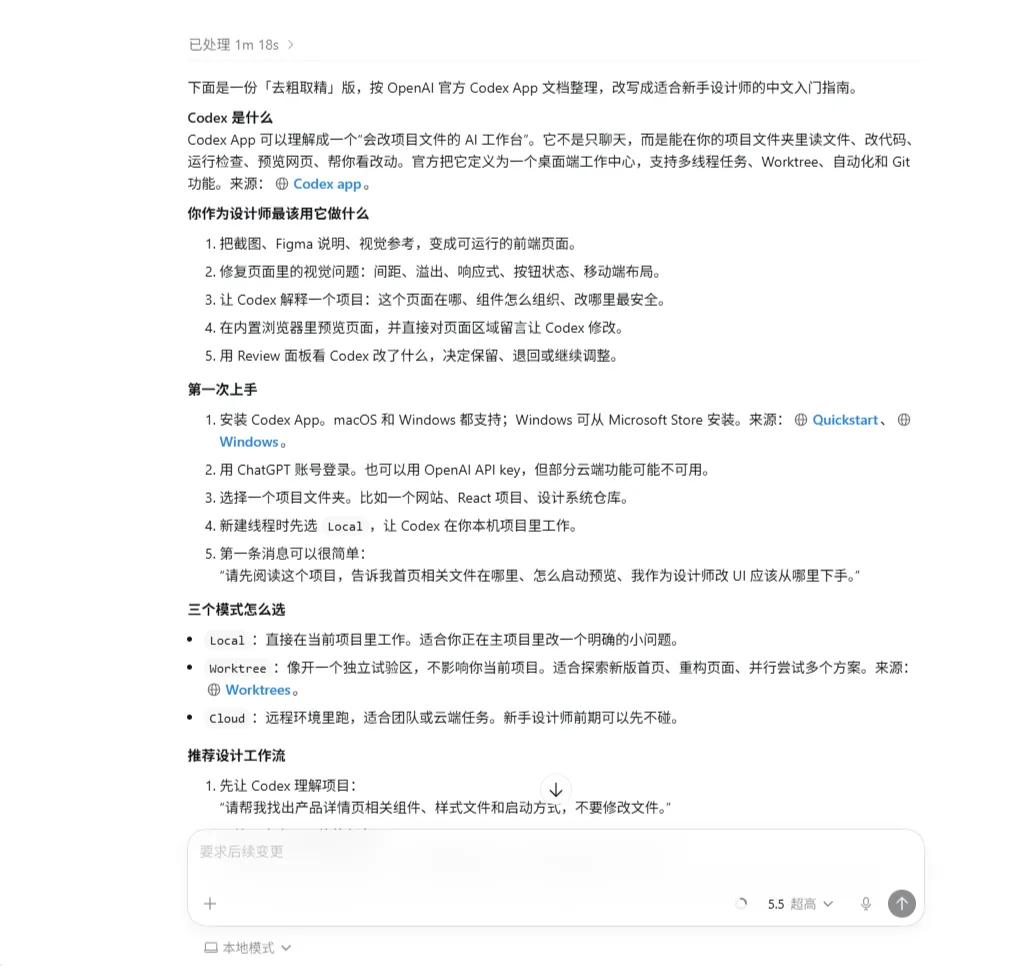
Of course, since we are using Codex, we can also ask it to simplify the official introduction for better understanding:
Comments
Discussion is powered by Giscus (GitHub Discussions). Add
repo,repoID,category, andcategoryIDunder[params.comments.giscus]inhugo.tomlusing the values from the Giscus setup tool.